How to create a password protected channel in Mumble
-
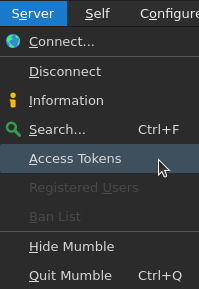
In the Mumble client, go to Server > Access Tokens from the main menu.
-
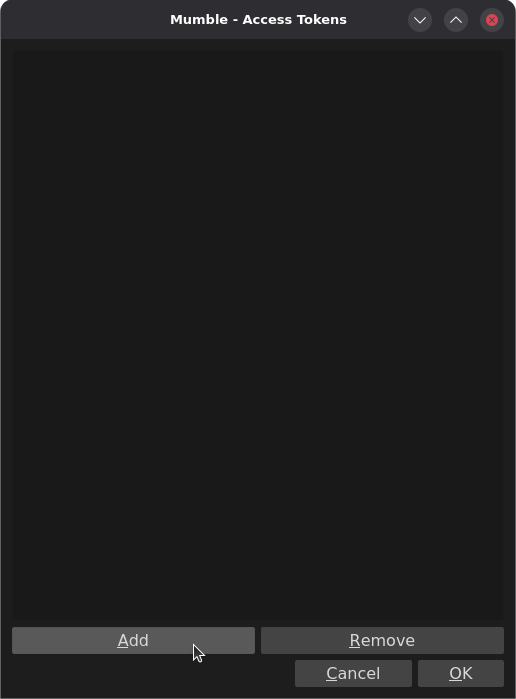
Click Add.
-
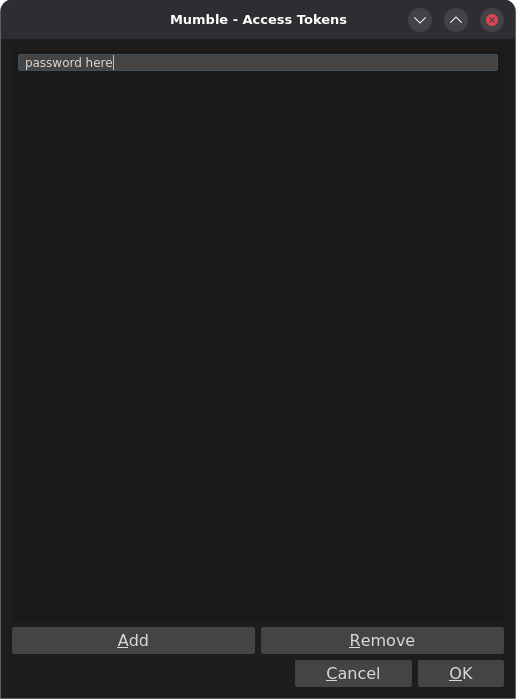
Enter the password you want to use for your channel, then click OK.
-
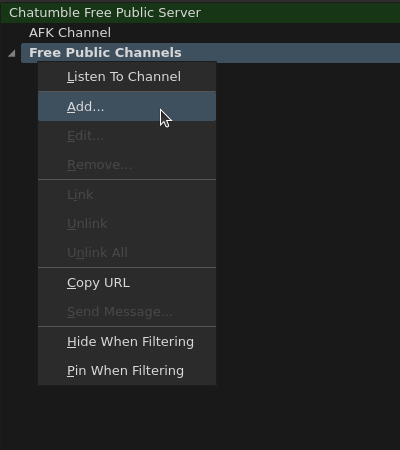
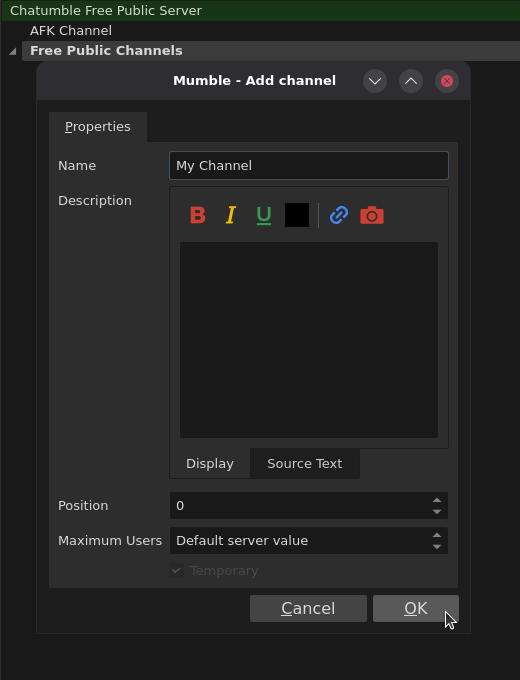
In the main Mumble window, right-click the Free Public Channels channel and select Add.
-
Enter a name for your channel in the Name field, then click OK.
-
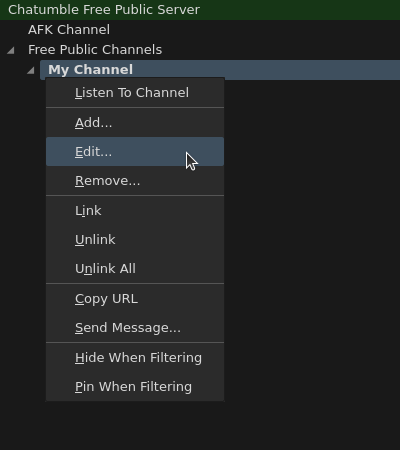
Right-click the channel you just created and select Edit.
-
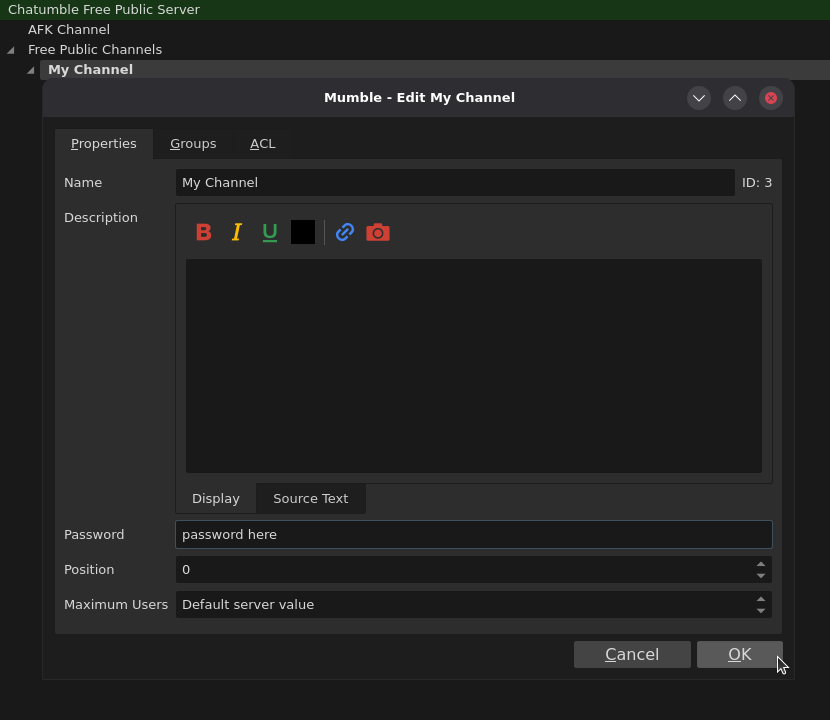
In the Properties tab, enter the password you created earlier into the Password field.
-
That’s it — your channel is now password-protected.